Beyond 14 Days: Schedule Texts on iPhone for Busy Couples
Beyond 14 Days: Schedule Texts on iPhone for Busy Couples
Yes, you can schedule texts on iPhone. For iMessage, open Messages and use the native Send Later feature built into iOS 18 and later. For SMS or RCS to a green bubble contact, you’ll need a Shortcuts automation instead, since Apple’s native tool only works on blue bubbles. If you’re scheduling the same kind of message over and over, especially for a partner, Pingher handles that recurring job with far less setup than either method.
TL;DR:
- Send Later is limited to scheduling iMessages within 14 days and requires the correct thread type, active connection, and iOS 18 or later.
- Shortcuts automations can schedule recurring SMS or texts to multiple contacts but involve complex setup and may face issues like group chat unreliability or time zone misalignment.
- Third-party apps can offer more flexible recurring messaging with better organization, but users must evaluate privacy, permissions, costs, and data handling policies.
- Troubleshooting send failures often involves verifying iOS version, network connection, permission settings, and ensuring the scheduled message is in an active iMessage thread.
- For ongoing, relationship-focused messaging, a dedicated app like Pingher provides one-tap, recurring, templated texts that native tools cannot efficiently support long-term.
Table of Contents
- How Do You Schedule an iMessage With Send Later?
- How Do You Schedule SMS or Recurring Texts With Shortcuts?
- Do You Need a Third-Party Scheduling App?
- What Should You Check When Something Doesn’t Work?
- When Native Tools Aren’t Enough for Recurring Relationship Messages
- An Editorial Take on Scheduling Texts the Right Way
- Where to Send Your Next Scheduled Message
- Sources
How Do You Schedule an iMessage With Send Later?
Send Later lives right inside the Messages app, and it’s the simplest way to line up a text without touching a third-party tool. Apple built this feature for exactly the situation you’re probably in: you thought of the perfect thing to say at 11:47 PM, and you’d rather it land at 8 AM.
Before you start, check three things. You need iOS 18 or later, the conversation has to be an active iMessage thread (blue bubble, not green), and your iPhone should be online around the time you schedule the message so the send confirms properly. If a thread has quietly fallen back from iMessage to SMS, the Send Later option won’t be available for that thread at all, so it’s worth glancing at the bubble color before you plan anything time-sensitive.
Here’s the actual process:
- Open Messages and go to the conversation you want to schedule.
- Type your message as usual, but don’t hit send yet.
- Touch and hold the blue up arrow (the send button) instead of tapping it.
- Select Send Later from the menu that pops up.
- Choose your date and time using the picker, then confirm.
- Tap the checkmark or Confirm to lock in the schedule.
That’s it. No extra app, no settings menu buried three folders deep.
Once it’s scheduled, the message doesn’t just vanish into a queue. It sits right in your conversation thread with a dashed outline around the bubble, so you can see at a glance that it’s pending rather than sent. Tom’s Guide notes that this dashed styling is intentional. Apple wants you to be able to tell a scheduled message from a delivered one without opening a separate screen.
If you change your mind, editing is just as easy:
- Tap the scheduled message bubble to reveal options.
- Choose Edit to change the wording or Send Now to fire it off immediately.
- Select Reschedule to pick a new date and time.
- Choose Delete to cancel it entirely.
There’s a ceiling on how far out you can plan, though. Apple caps Send Later at up to 14 days in advance, so this feature is built for near-term planning, not for scheduling a birthday message six months out. Behind the scenes, your scheduled message is stored encrypted on Apple’s servers until the delivery moment arrives, which is why it can send even if your phone is briefly off or out of signal range at the exact scheduled minute.
Pro Tip: If you’re scheduling something for a specific moment, like right when your partner lands from a flight, build in a five-minute buffer. Network handoffs and time zone quirks can shift the actual delivery by a minute or two.
One limitation worth flagging early: Send Later has no concept of “repeat.” Every message you schedule this way is a one-time event. If you want the same good-morning text to go out every day, native Messages isn’t built for that job, and that’s where the next method comes in.
How Do You Schedule SMS or Recurring Texts With Shortcuts?
Send Later only speaks iMessage. If your recipient shows up as a green bubble, or you want a message to repeat automatically, you need the Shortcuts app to build a personal automation. This is more setup than Send Later, but it’s still something you do once and then forget about.
Decide which tool fits the job before you start. Use native Send Later for a single, one-off iMessage. Use Shortcuts when you’re texting an Android user over SMS, when you want a message to recur daily or weekly, or when you’re comfortable trading a bit of setup time for genuine hands-off automation.
Here’s the build, step by step:
- Open the Shortcuts app on your iPhone.
- Tap the Automation tab at the bottom.
- Tap the + icon, then choose Create Personal Automation.
- Select Time of Day, set your desired date and time, and choose whether it repeats daily, weekly, or on custom days.
- Tap Next, then Add Action.
- Search for Send Message, select it, and type your text.
- Tap the recipient field and choose your contact.
- Tap Next to review the automation summary.
That summary screen is where most people trip up, and it’s the single most important step in this entire section.
By default, iOS sets new automations to Ask Before Running. If you leave that toggle on, your phone will interrupt you with a confirmation prompt at the scheduled time instead of just sending the message. Digital Trends is direct about this: true hands-off scheduling requires turning that toggle off. Tap Ask Before Running, switch it to off, and confirm you understand the automation will run without a prompt going forward.
Run the automation manually once before you trust it with something important. Tap the automation in your list and select Run to fire a test send immediately. This catches typos, wrong recipients, and permission issues before they matter, rather than after your message silently fails to go out at 7 AM.
A few real limitations to know about upfront:
- Group chats are unreliable. Shortcuts automations are built around single recipients, and results in group threads can be inconsistent.
- Leaving Ask Before Running on defeats the purpose. Your phone will pause and wait for a tap, which means you’re not actually automating anything if you’re still the one confirming it.
- Time zone drift matters if you travel. Shortcuts automations run on your iPhone’s current time zone, so a recurring 8 AM message can shift by hours if you cross zones without checking.
- Recurring automations need occasional re-verification. iOS sometimes disables automations after major updates, so it’s worth a quick check-in every few weeks.
Pro Tip: If a recurring “good morning” automation matters to you, set a reminder of your own, ironically, to check it once a month. A five-second glance saves you from a week of silently failed sends nobody noticed.
Shortcuts gets you real recurrence, which Send Later can’t offer. But it’s also clearly a workaround. You’re bending a general-purpose automation tool into a job it wasn’t originally designed for, and that shows in the friction: multiple menus, a toggle that’s easy to miss, and no built-in way to swap in a new message each time without editing the automation itself.
Do You Need a Third-Party Scheduling App?
Native tools cover the basics well. But there are real situations where an app-based approach makes more sense than fighting with Shortcuts.
Consider a third-party app if you regularly send the same kind of message to multiple people across both iMessage and SMS, since Apple’s tools treat those as two separate workflows. Apps are also worth it if you want richer recurrence than “daily or weekly,” like a message that goes out on the third Friday of every month, or if you’re managing scheduled messages for more than one relationship or context and want them organized in one place rather than scattered across automations.
Before installing anything, run it through this checklist:
- Permission model. Does the app need full access to your contacts and message history, or can it work with narrower permissions?
- Where the send actually happens. Some apps queue messages on their own servers, while others trigger your phone locally; server-side sending means the company can technically see message content.
- Real cost over time. A “free” app that gates recurring messages behind a subscription later can end up pricier than one that’s upfront about pricing.
- Audit trail. Can you see a history of what was scheduled and sent, or does everything disappear once it goes out?
- Privacy policy specifics. A vague policy that doesn’t say what happens to your message content after delivery is a reason to keep looking.
A few red flags are worth walking away from immediately: apps that ask for your Apple ID password directly instead of using standard iOS permissions, apps with no visible privacy policy at all, and apps that require posting your messages through a third-party number rather than your own.
What Should You Check When Something Doesn’t Work?
Most Send Later problems trace back to one of five things. Work through this list before assuming something’s broken.
- iOS version. Send Later requires iOS 18 or later; check Settings > General > Software Update.
- iMessage status. Confirm the toggle is on under Settings > Messages > iMessage.
- Bubble color. If the thread shows green instead of blue, Send Later won’t appear as an option, since it only works for iMessage.
- Network connection. Your phone needs a data or Wi-Fi connection around the scheduled time for the send to confirm.
- Permissions. For Shortcuts automations, verify the automation has access to Messages under Settings > Shortcuts.
Time zone issues deserve their own look, especially if you travel. Check Settings > General > Date & Time and confirm Set Automatically is on, since a manually set time zone that doesn’t match your actual location will shift every scheduled send.
If a Shortcuts automation stalls at the exact moment it should fire, the fix is almost always the same one covered earlier: Ask Before Running is still switched on. A left-on toggle is the single most common Shortcuts pitfall reported by users, and it turns a hands-off automation into one that just sits there waiting for a tap you might not see for hours.
What Apple Actually Guarantees: Scheduled iMessages are stored encrypted on Apple’s servers until the moment they’re delivered, and you can edit, reschedule, or delete them any time before that moment arrives. The scheduling window tops out at 14 days, which is why nobody uses native Send Later for anything recurring.
When Native Tools Aren’t Enough for Recurring Relationship Messages
Send Later and Shortcuts both do their jobs, but neither was built with one specific use case in mind: a daily or weekly message to the person you love, sent consistently, without you having to rebuild the automation every time you want to change the words.
That gap is exactly what Pingher fills. Where Send Later caps out at 14 days and handles only one-time sends, Pingher is built from the ground up for recurring, relationship-focused messaging. You’re not fighting a toggle buried in an automation summary screen. You tap once, and a genuinely thoughtful message goes to the person who matters most.
Here’s what that looks like in practice:
- One-tap sending. Skip the typing entirely when you’re short on time but still want the moment to land.
- Relationship-focused templates. Messages written for exactly this purpose, not repurposed reminder text.
- Recurring scheduling built in. Set it once for daily or weekly sends without rebuilding an automation each time.
- A private, ad-free space. No feed, no algorithm, just the message and the person it’s for.
| What matters to you | Native Send Later | Shortcuts automation | Pingher |
|---|---|---|---|
| Best for | One-time iMessage | SMS or basic recurrence | Recurring relationship messages |
| Setup effort | Low | Moderate, several menus | Low, one-tap |
| Message variety | Manual each time | Fixed text per automation | Rotating templates |
| Advance window | Up to 14 days | No fixed limit | Ongoing recurrence |
If you’ve ever meant to send something thoughtful and let the day slip by, that’s the exact friction Pingher was built to remove. For a closer look at how the templates and automation work together, Pingher’s guide to sending affectionate messages on autopilot walks through the setup, and this piece on automated love messages covers why consistency tends to matter more than any single grand gesture.
An Editorial Take on Scheduling Texts the Right Way
Most guides to this topic stop at “here’s how Send Later works,” as if scheduling a single text solves the actual problem people have. It doesn’t. The real friction isn’t sending one delayed message. It’s remembering to keep doing it, week after week, without the whole thing turning into another chore you eventually abandon.
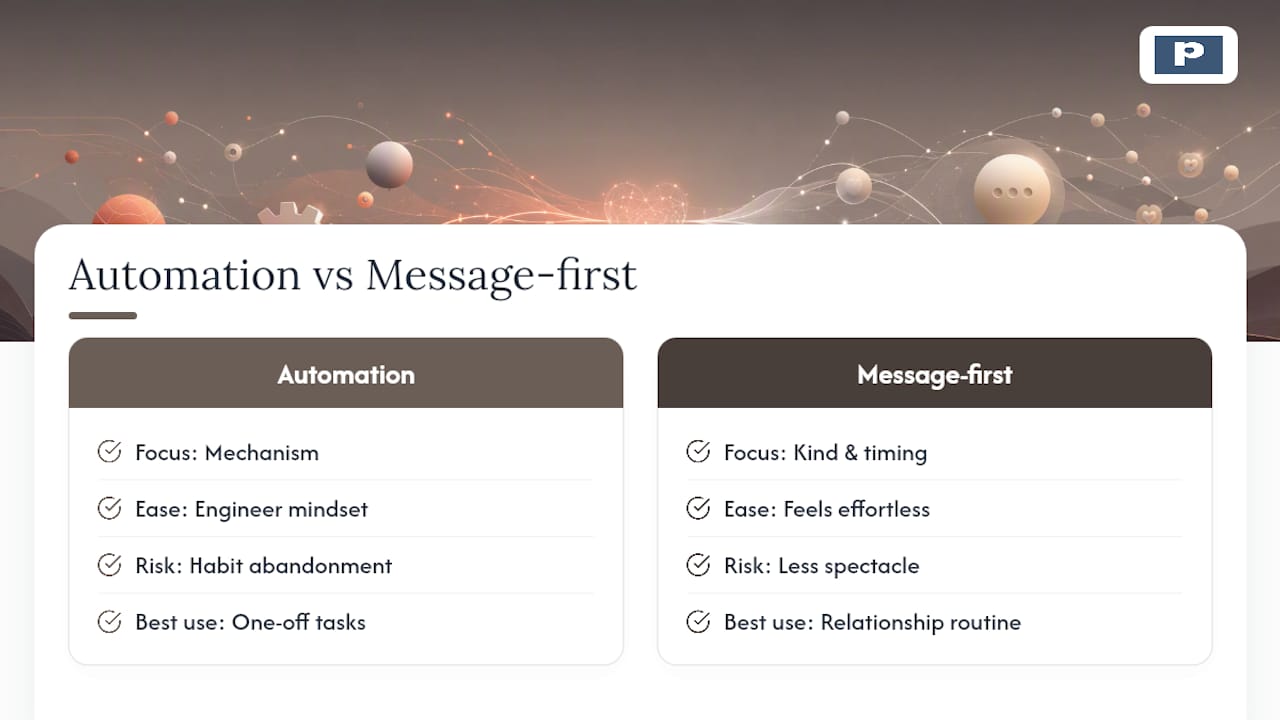
Shortcuts proves this indirectly. It’s a genuinely capable tool, but the fact that so many guides need a “don’t forget to turn off Ask Before Running” warning tells you something: general-purpose automation tools ask you to think like an engineer for a job that should feel effortless. That’s fine for a one-off SMS to a delivery driver. It’s the wrong tool for a habit you’re trying to build with someone you love.
If you take one thing from this guide, prioritize the kind of message before the mechanism. A single well-timed text beats a perfectly automated Shortcuts flow. If the goal is consistency in a relationship, reliable reminders tend to outperform sporadic grand gestures, and that’s worth building around from day one.
— Alan
Where to Send Your Next Scheduled Message
Native Send Later and Shortcuts both work, but they’re built for isolated tasks, not for the daily habit of showing up for someone you love. Pingher is the alternative built specifically for that habit: one tap sends a genuinely thoughtful message, with relationship-focused templates already written and recurring schedules that don’t require rebuilding an automation every time you want fresh wording.
If you’re the kind of guy who thinks of the right thing to say but rarely gets around to sending it, this closes that gap without adding another chore to your day. There’s no feed, no ads, and no algorithm deciding what your partner sees. For ideas on what to actually say once it’s set up, Pingher’s collection of personalized love message templates is a solid place to start. Try Pingher on Google Play today and set your first recurring message before the week is out.
Sources
- Schedule a text message on iPhone to send later - Apple Support
- How to schedule a text message on iPhone - Digital Trends
- How to schedule iMessages in iOS 18 - Tom’s Guide
Recommended
Built for couples who care.
Pingher helps you send the right words at the right moment.
Get Pingher on Google Play